
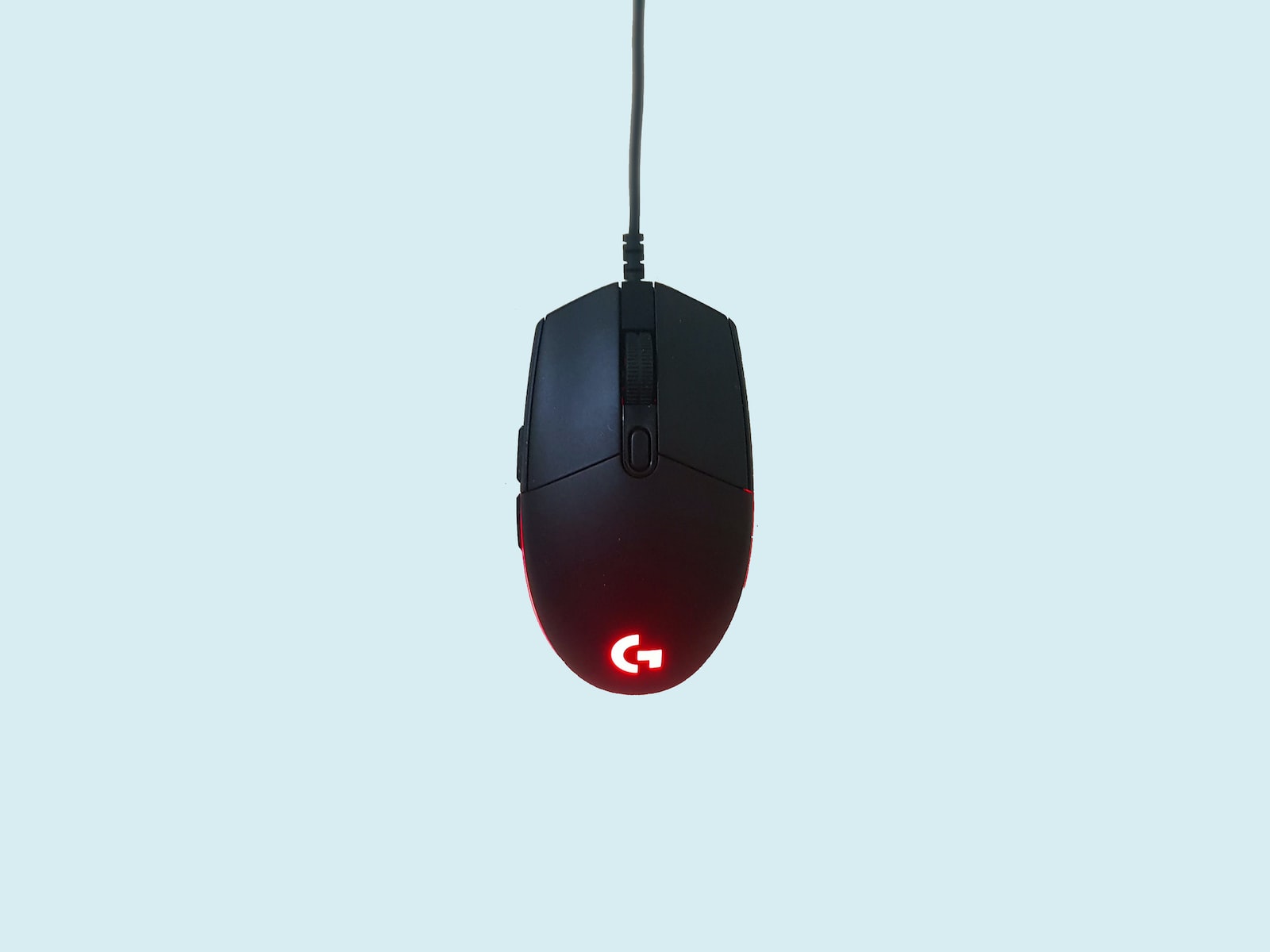
Ever felt like juggling a mouse and keyboard slows you down while coding? To code without a mouse isn’t just possible; it can actually boost your workflow. By relying solely on your keyboard, you navigate your environment faster, improve focus, and even reduce repetitive strain. Whether you’re a developer aiming for efficiency or someone adapting to accessibility needs, mastering this skill can transform how you approach coding.
Understanding Keyboard Shortcuts
When coding without a mouse, keyboard shortcuts become your best ally. They help you navigate, edit, and debug your code at lightning speed. Understanding and using these shortcuts effectively can save you time and reduce dependency on the mouse, making coding a smoother experience.
Common Keyboard Shortcuts for IDEs
Different IDEs (Integrated Development Environments) have their own set of shortcuts, but many of them overlap in function. Here’s a look at some essential shortcuts across popular IDEs like Visual Studio, IntelliJ IDEA, and Eclipse:
- Visual Studio:
- Ctrl + D: Duplicates a selected line.
- Ctrl + K + C: Comments out the selected code.
- Ctrl + K + U: Uncomments the selected code.
- F5: Starts debugging.
- IntelliJ IDEA:
- Ctrl + E: Opens the recent file menu.
- Alt + Enter: Displays context actions.
- Shift + F6: Renames variables, methods, or files.
- For a detailed guide, check out IntelliJ IDEA keyboard shortcuts.
- Eclipse:
- Ctrl + Shift + R: Opens a file.
- Ctrl + Space: Activates autocomplete.
- Ctrl + 1: Shows quick fixes.
For additional shortcuts and tips, explore the top IntelliJ IDEA shortcuts or dive into learning about shortcuts to enhance your workflow via the Rocket Software Community.
Customizing Keyboard Shortcuts
Customizing shortcuts is not only about convenience but also about creating a workflow that feels natural to you. Here’s how you can modify them in some commonly used IDEs:
- Visual Studio: Head to the menu bar, choose
Tools > Options, and navigate toEnvironment > Keyboard. This allows you to add or change existing shortcuts. Detailed steps are available here. - Eclipse: Go to
Window > Preferences > General > Keys. Search or filter commands to assign new shortcuts that suit your needs. For further customization tips, visit Stack Overflow’s Eclipse guide. - RStudio: Open the
Tools > Modify Keyboard Shortcutsmenu. From here, you can bind any command to a different combination. Read more about it on the RStudio User Guide.
By customizing shortcuts, you can fine-tune your setup to improve your programming productivity. It’s a small step with big gains, ensuring that every keystroke is optimized for how you work.
 Photo by Miguel Á. Padriñán
Navigating Code Efficiently
Mastering efficient code navigation without a mouse can dramatically streamline your coding workflow. By harnessing tools like keyboard shortcuts and built-in features in your IDE, you save time and maintain better focus on tasks. Let’s break down two core aspects of keyboard-only navigation: jumping to code definitions and maneuvering through files.
Using Jump to Definition and Find Features
When you’re coding without a mouse, “Jump to Definition” and “Find” features are your go-to tools for exploring your codebase. They allow you to hop directly to a function, variable, or class definition without manually scrolling through endless lines of code. Think of it as a built-in GPS for your coding environment.
With “Jump to Definition,” you can quickly locate where a method or variable is defined. For instance, in Visual Studio Code, the shortcut F12 jumps directly to the definition. Similarly, tools like Peek Definition (often accessed with Alt+F12) let you refer to definitions in a popup without leaving your current context. These shortcuts are invaluable for navigating complex projects with multiple files and dependencies. Check out Microsoft’s guide for more details on this feature across different IDEs.
The “Find” functionality is equally essential—searching for specific words, class names, or methods across your entire codebase simplifies troubleshooting and quick edits. For example:
- Ctrl+F (Find within a file)
- Ctrl+Shift+F (Find across all files)
These commands help maintain your coding momentum without switching between tabs or relying on a mouse.
Navigating Files and Folders
Switching between files and folders is another vital skill for coding without a mouse. Keyboard shortcuts make it effortless to jump to specific files or explore project structures.
In most IDEs, features like “Quick Open” let you access files by name without needing to browse folders. In Visual Studio Code, using Ctrl+P opens a search bar where you can type the filename and jump to it instantly. This is a game-changer when working on larger projects, as you can access deeply nested files in seconds. Learn more about file navigation shortcuts from this useful guide.
For shifting between open files, shortcuts like Ctrl+Tab and Ctrl+Shift+Tab cycle through documents in the order they were opened. If you need to navigate parent folders or project files, IDEs like IntelliJ IDEA include hierarchical shortcuts, such as Alt+1 to bring up the project explorer view.
Want to dive even deeper into techniques to handle files and folders without a mouse? Find expert tips on this topic in Noble Desktop’s Visual Studio Code guide—perfect for beginners and advanced coders alike.
By leveraging these tools, you can seamlessly move through your codebase and focus on what really matters—writing clean, effective code.
 Photo by Lukas
Leveraging Command Line Interfaces
Many developers initially consider coding without a mouse a daunting idea, but Command Line Interfaces (CLIs) can turn this into a streamlined and productive process. By understanding the fundamentals of command-line operations, you unlock a world of fast navigation, powerful shortcuts, and seamless control over your workflow.
Basic Command Line Commands: Enhancing Productivity
Mastering a few basic command-line commands can make your coding life significantly more efficient. These commands replace tasks typically performed with a mouse, allowing for greater speed and focus.
For instance, consider these essential commands:
cd [directory]: Change the current directory. Navigate directly to the folder where your project resides.ls(Linux/macOS) ordir(Windows): Lists the contents of a directory. Ideal for quick glances at files and folders.mkdir [foldername]: Creates a new directory. No need for right-clicking to create folders.touch [filename](Linux/macOS): Creates an empty file. This is especially handy for starting new scripts or config files.rm [filename]: Deletes files without dragging them to a trash bin.cp [source] [destination]: Copies files or directories to a new location. Think of it as the keyboard-only equivalent of “drag and drop.”
These commands look simple, but their utility is immense. They save you from navigating nested menus and instead let you work with precision. If you’re curious about more command-line operations, you can explore this list of must-know CMD commands or dive deeper into CLI tricks at Laravel News.
Integrating Git Commands: Managing Version Control Without a Mouse
Using Git from the command line is a perfect example of coding without a mouse. You maintain full control over versioning and collaboration, all through concise and efficient commands.
For starters, here are the basics:
git init: Initializes a new Git repository in your directory.git add [filename]: Stages specific files for committing. Want to stage all files? Usegit add .instead.git commit -m "[message]": Records repository changes with a descriptive commit message.git pull [origin] [branch]: Updates your local repository with changes from remote sources.git push [origin] [branch]: Sends your local changes to the remote repository.
The best part? These commands do away with clunky graphical interfaces. Instead of fumbling through dropdowns, you execute tasks in seconds. Need to resolve a tricky merge conflict or set up new branches? Use commands like git merge or git branch [branchname] to keep everything flowing smoothly.
For an in-depth look at Git commands, check out this beginner-friendly Git tutorial or familiarize yourself with common commands via Atlassian’s breakdown.
By incorporating these practices into your workflow, you’ll not only improve efficiency but also build a deeper understanding of your tools. The command line doesn’t just replace the mouse—it enhances your coding capabilities.
 Photo by Negative Space
Tools and Extensions for Mouse-less Coding
Coding without a mouse might feel daunting at first, but the right tools and extensions can transform this challenge into a smooth, effective workflow. From highly efficient text editors to purpose-built IDE extensions, let’s explore how you can navigate, edit, and code seamlessly using only your keyboard.
Vim and Related Editors

Photo by Pixabay
Vim is, in many ways, the gold standard for mouse-less coding. This modal text editor prioritizes keyboard-based navigation, editing, and command execution, making it incredibly appealing for developers looking to code with maximum efficiency. Vim’s approach might initially seem unfamiliar, relying on modes like Insert, Visual, and Command to handle different editing tasks—but this design is deliberate, meant to reduce context switching and increase speed.
The keyboard-centric philosophy extends beyond Vim. Editors like Emacs and extensions integrating Vim-inspired workflows into other tools uphold similar principles. Tools like Neovim, an enhanced version of Vim, aim to modernize these features, offering integrated language servers and extensibility tailored for today’s programming demands. Learn more about the scope of Vim and Vim-like tools from The Ultimate Keybindings List on GitHub.
Curious about how tools like Vim stack up in real-world coding flows? Check out insights from developers using Vim-inspired systems on Nathan Craddock’s Blog.
While these editors have a steep learning curve, mastering them unlocks unparalleled control and speed. Every keystroke is purposeful, further enhancing productivity and focus.
Extensions for IDEs
IDEs offer powerful features, but many tasks are mouse-driven. Adding compatible keyboard extensions can help create an efficient, mouse-free development environment while maintaining the advanced capabilities of these IDEs.
- VSCode Extensions: “Vim Mode” brings familiar Vim functionality into Visual Studio Code. For accessibility, there’s Kite Autocomplete or TabNine, both enabling seamless in-file navigation. Extensions like Kanata help remap keys for easier traversing. Explore more IDE customizations in this GitHub project.
- IntelliJ IDEA Plugins: IntelliJ has built-in features like keyboard mappings but can be augmented with plugins like Key Promoter X, which actively reminds users of available shortcuts. It reinforces muscle memory while reducing the temptation to reach for the mouse.
- Browser Add-Ons: Developers often test applications in browsers. Accessibility extensions such as those mentioned in Digital Accessibility Plug-ins enhance testing workflows. They also let you debug features like tab order and focus traps.
Balancing enhancements boosts the versatility of your workflow. With these tools, you’ll stay laser-focused on coding, skipping the inefficiencies that come with constant mouse clicks.
Benefits of Coding Without a Mouse
Coding without a mouse may seem unconventional, but it offers a range of advantages that can enhance your workflow. By fully engaging with your keyboard, you can save time, improve focus, and even support your physical well-being. Let’s dig deeper into the practical and ergonomic benefits of going mouse-free.
Increased Productivity
Coding without a mouse can significantly boost your speed and accuracy. Why? Because the seconds you save moving your hand between the mouse and keyboard quickly add up. It’s like trading in a manual bicycle for a more efficient machine—every motion is streamlined for consistency.
When you rely solely on keyboard shortcuts, your fingers remain on the keys, enabling quick access to commands. Instead of visually locating a menu option, you memorize key combinations that execute those tasks instantly. For instance, executing frequent tasks like copy-pasting, navigating tabs, or triggering builds feels seamless once you’ve mastered the shortcuts.
Consider the cumulative effect: developers switching between mouse and keyboard 100 times during a task might spend extra minutes each day. Over a week, that could translate into hours. Mastering tools like Vim or customized shortcuts in IDEs like Visual Studio Code can amplify your momentum, freeing up time for what matters most—actual problem-solving. In fact, check out some insights on streamlining workflows by eliminating mouse use, as shown in this insightful article. It’s clear that ditching the mouse can make a real difference when it comes to increasing daily efficiency.
Better Focus and Ergonomics
Reducing mouse usage does more than speed up your workflow—it also helps with focus. Constantly switching between devices can distract your mind, breaking your concentration. By working entirely with the keyboard, you keep your brain in “coding mode,” minimizing interruptions to your thought process.
There’s also a physical benefit to think about: ergonomics. Using a mouse forces your hand into repetitive movements, which can lead to strain over time. Conditions like carpal tunnel syndrome or wrist pain often stem from improper posture and overuse of pointing devices. A keyboard-centric approach encourages better alignment of your hands and wrists, reducing stress on your joints. For those who spend hours coding every day, this small adjustment can have a profound impact on long-term health.
Pairing a keyboard-focused workflow with ergonomic tools—like split mechanical keyboards or wrist supports—further enhances comfort and efficiency. Developers on forums like Reddit often share personal experiences of improved productivity and well-being when adopting these methods. It’s a habit that not only optimizes performance today but also protects you from potential issues in the future.

Photo by TREEDEO
Wrapping It All Up
Coding without a mouse isn’t just about learning shortcuts—it’s adopting a mindset centered on efficiency and intent. By mastering your keyboard and rethinking how you interact with tools, you unlock a workflow that’s faster, more focused, and physically sustainable. What’s stopping you from trying these techniques yourself?
Keyboard-only navigation helps you stay in the zone, minimizing distractions. Shortcuts cut down on hand movement and repetitive strain. Whether you use an IDE or prefer tools like Vim, there’s a workflow out there to match your needs. Start small—learn one new shortcut or command daily. Practice those until they feel like second nature.
If you’re curious about more inspiration, explore how others made the shift. For instance, developers discuss their adjustments on Reddit and share lessons learned in blogs like Dev.to. Adopting this practice doesn’t just enhance productivity; it redefines how you think about problem-solving.
Give it a go. The tools are ready, the methods are simple, and the benefits are tangible. Why not start today?


