
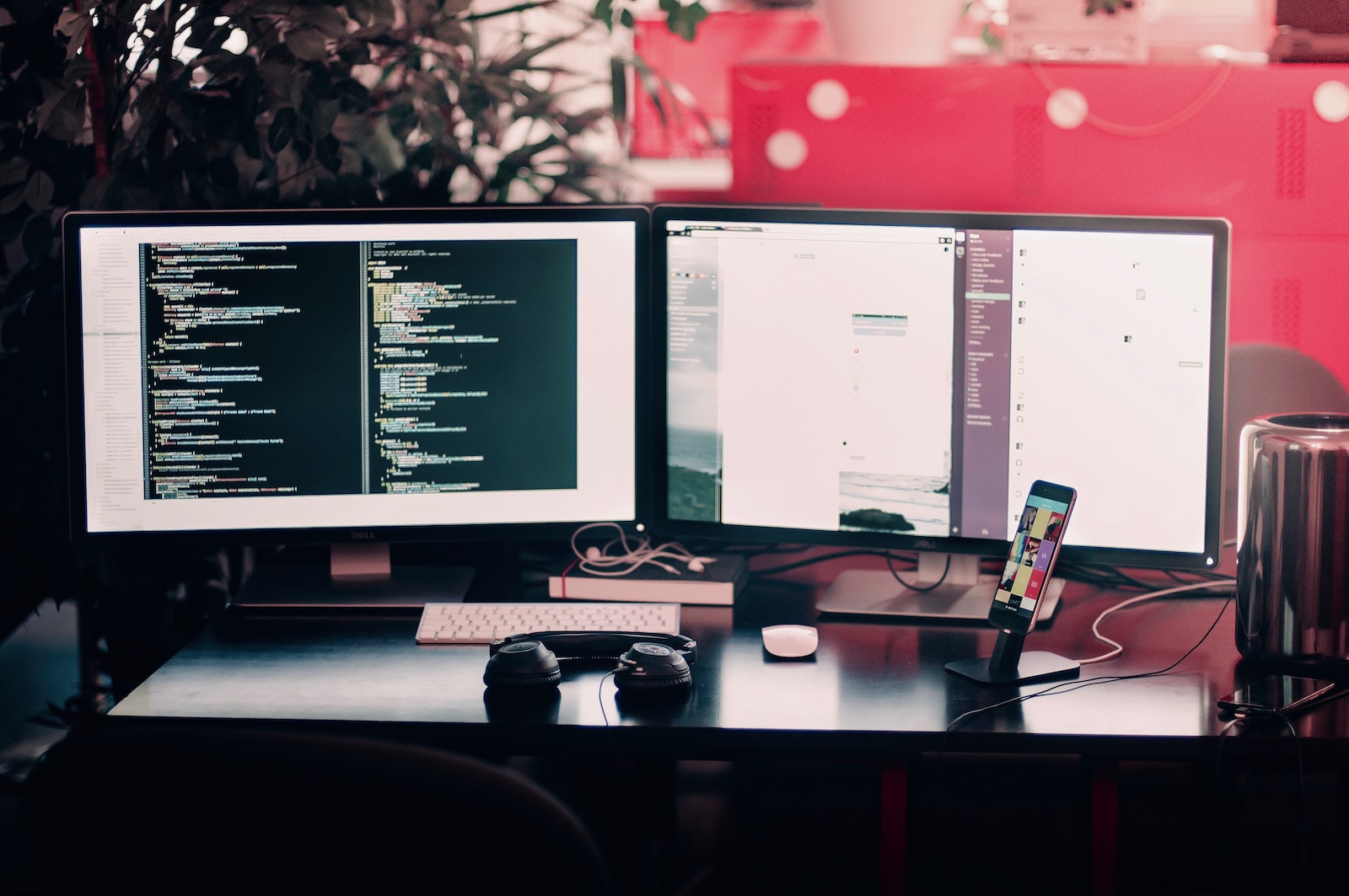
Configuring a dual monitor setup for a desktop computer is a great way to increase productivity and enhance the overall computing experience. With two monitors, users can multitask more efficiently, work with larger documents, and have a more immersive gaming experience. In this article, we will discuss the steps involved in setting up a dual monitor configuration for a desktop computer.
-
Check your computer’s graphics card and ports
Before setting up a dual monitor configuration, it is important to check whether your computer’s graphics card supports multiple displays. Most modern graphics cards support dual monitors, but older models may not. To check the graphics card, you can open the Device Manager in Windows or System Information on macOS. Look for the Display Adapters section, which should list the graphics card installed on your computer.
Next, check the ports available on your graphics card. Most graphics cards have at least one HDMI port and one DisplayPort or VGA port. However, some older models may only have VGA ports. Make sure that your graphics card has the necessary ports to connect two monitors.
-
Check your monitors
Once you have checked your computer’s graphics card and ports, you need to check your monitors. Make sure that your monitors have the necessary ports to connect to your graphics card. Most modern monitors have HDMI, DisplayPort, or DVI ports. If your monitors have different ports than your graphics card, you may need to purchase an adapter.
It is also important to check the resolution and refresh rate of your monitors. Make sure that both monitors have the same resolution and refresh rate. This will ensure that the displays look uniform and that there is no lag or stutter when moving windows between monitors.
-
Connect your monitors to your graphics card
Once you have checked your computer’s graphics card and ports, and your monitors, you can connect the monitors to your computer. First, turn off your computer and unplug all cables. Then, connect one end of the HDMI or DisplayPort cable to your graphics card and the other end to your primary monitor. Repeat this step for the second monitor.
-
Turn on your computer and configure the display settings
Once you have connected the monitors, turn on your computer. Your computer should automatically detect the new displays and configure them for use. However, if your computer does not detect the monitors, you may need to manually configure the display settings.
In Windows, right-click on the desktop and select Display Settings from the context menu. This will open the Display Settings window, where you can configure the display settings for your monitors. Here, you can choose which monitor is your primary display, adjust the resolution and scaling, and arrange the displays according to your preferences.
In macOS, open System Preferences and click on Displays. This will open the Displays window, where you can configure the display settings for your monitors. Here, you can choose which monitor is your primary display, adjust the resolution and scaling, and arrange the displays according to your preferences.
-
Adjust the monitor settings
Once you have configured the display settings, you may need to adjust the monitor settings to ensure that the displays look uniform. This includes adjusting the brightness, contrast, and color settings of the monitors. You can do this using the built-in monitor settings or through the graphics card settings.
-
Test the dual monitor setup
Finally, you should test the dual monitor setup to ensure that it is working properly. Open multiple windows and move them between the monitors to ensure that there is no lag or stutter. If you are using the dual monitor setup for gaming, test the setup with your favorite games to ensure that there is no lag or stutter and that the graphics look uniform.
In conclusion, configuring a dual monitor setup for a desktop computer is a straightforward process that can greatly enhance productivity and the overall computing experience. By following the steps outlined above the configuration process and testing the setup, users can enjoy a more immersive and efficient computing experience. It is important to note that while most modern graphics cards support dual monitors, some older models may not. Additionally, it is important to ensure that both monitors have the same resolution and refresh rate to avoid any issues with lag or stutter.
Overall, a dual monitor setup is a great investment for anyone who spends a lot of time working on their computer, whether for work or play. With a dual monitor setup, users can multitask more efficiently, work with larger documents, and have a more immersive gaming experience. By following the steps outlined above, users can easily set up a dual monitor configuration for their desktop computer and take advantage of all the benefits that it offers.


