
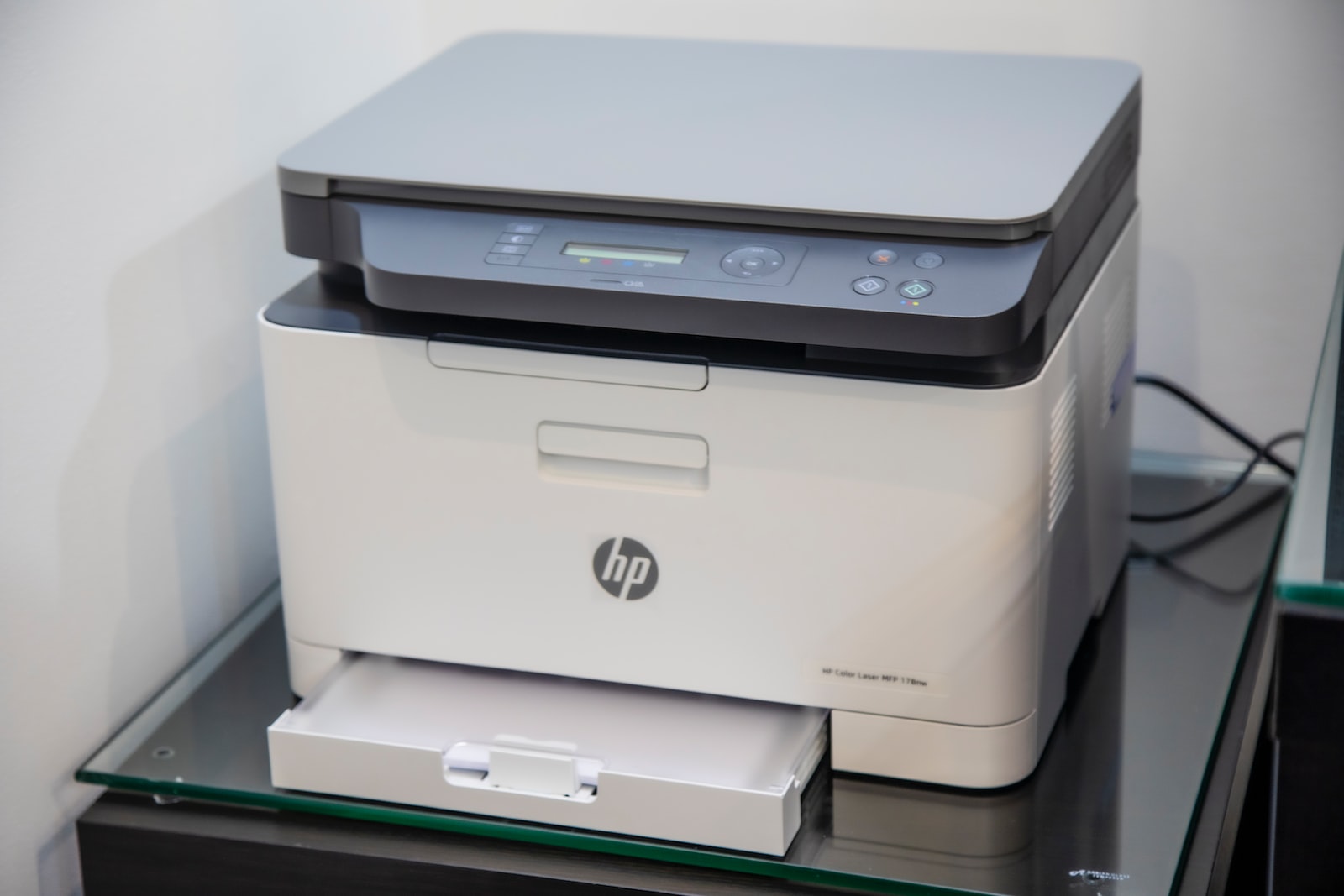
Scanners are essential devices for capturing images, documents, and other types of content and converting them into digital format. They are widely used in offices, homes, and other settings to scan and store important documents, photographs, and other files. To connect a scanner to a computer, you will need to follow a few simple steps. In this article, we will discuss how to connect a scanner to a computer.
How to Connect a Scanner to a Computer
Step 1: Check Scanner Compatibility
The first step in connecting a scanner to a computer is to ensure that the scanner is compatible with your computer’s operating system. Check the scanner’s documentation or the manufacturer’s website to determine if the scanner is compatible with your operating system. Most scanners are compatible with Windows and macOS, but some may not be compatible with newer versions of these operating systems.
Step 2: Install Scanner Software
Before you can connect your scanner to your computer, you will need to install the scanner’s software on your computer. The software is usually included with the scanner, but you can also download it from the manufacturer’s website. Follow the installation instructions to install the software on your computer.
Step 3: Connect the Scanner to the Computer
The next step is to connect the scanner to the computer. Most scanners connect to the computer using a USB cable. Connect one end of the USB cable to the scanner and the other end to a USB port on your computer. If your scanner uses a different type of cable, such as a FireWire cable, make sure that you have the correct cable and connect it to the appropriate port on your computer.
Step 4: Turn on the Scanner
Once you have connected the scanner to the computer, turn on the scanner. Make sure that the scanner is powered on and that the power light is illuminated. Some scanners may require an external power source, such as a power adapter, so make sure that the power source is connected and turned on.
Step 5: Install Scanner Drivers
After you have connected the scanner to the computer and turned it on, you will need to install the scanner’s drivers. The drivers are software that allows the scanner to communicate with the computer. The driver installation process may vary depending on the scanner and the operating system. In most cases, the computer will automatically detect the scanner and prompt you to install the drivers. Follow the on-screen instructions to install the drivers.
Step 6: Test the Scanner
Once you have installed the scanner drivers, you can test the scanner to make sure that it is working correctly. Open the scanner software on your computer and select the scanner from the list of available devices. Follow the software’s instructions to scan a document or image. If the scanner is working correctly, the scanned image will appear on your computer screen.
Conclusion
Connecting a scanner to a computer is a straightforward process that requires a few simple steps. First, check the scanner compatibility with your operating system. Next, install the scanner software on your computer. Then, connect the scanner to your computer using a USB cable. Turn on the scanner and install the scanner drivers. Finally, test the scanner to ensure that it is working correctly. By following these steps, you can easily connect a scanner to your computer and start scanning documents, images, and other types of content.


