
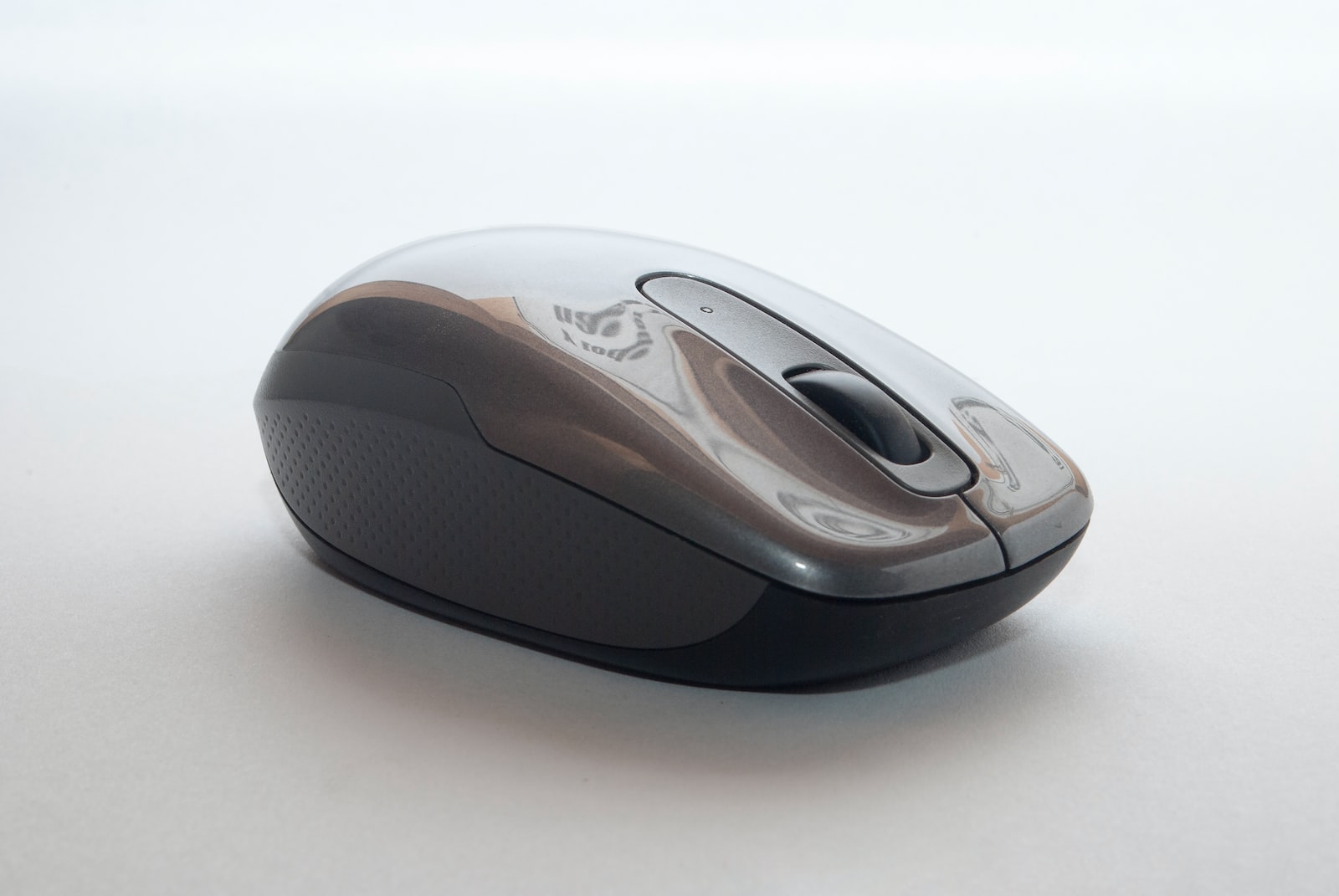
A malfunctioning computer mouse can be frustrating and can affect your productivity. There are several possible reasons why your mouse may not be functioning properly, ranging from software issues to hardware problems. Troubleshooting a malfunctioning mouse can seem daunting, but with some basic steps, you can quickly identify and resolve the issue. In this article, we will discuss how to troubleshoot a malfunctioning computer mouse.
Troubleshoot a malfunctioning computer mouse
-
Check the Basics
The first step in troubleshooting a malfunctioning mouse is to check the basics. Ensure that the mouse is connected to your computer properly. If you are using a wired mouse, check that the USB cable is properly plugged in. If you are using a wireless mouse, ensure that the batteries are properly inserted, and the mouse is turned on. Also, make sure that your computer is turned on and that the mouse is within range. If the mouse still isn’t working, move on to the next step.
-
Restart Your Computer
If the mouse is still not working, restart your computer. This can resolve any software issues that may be causing the problem. Once your computer has restarted, try using the mouse again. If the mouse still doesn’t work, move on to the next step.
-
Check the Mouse Settings
The next step in troubleshooting a malfunctioning mouse is to check the mouse settings. Go to the Control Panel and click on the Mouse icon. Check that the mouse settings are correct, and that the mouse is set up for the correct button configuration. If the settings are incorrect, make the necessary changes and try using the mouse again.
-
Update the Mouse Drivers
If the mouse is still not working, it may be because the mouse drivers are outdated or corrupt. To update the drivers, go to the manufacturer’s website and download the latest drivers for your mouse. Install the drivers and restart your computer. Try using the mouse again. If the mouse still doesn’t work, move on to the next step.
-
Test the Mouse on Another Computer
If the mouse is still not working, it may be a hardware issue. Test the mouse on another computer. If the mouse works on another computer, then the issue is with your computer. If the mouse does not work on another computer, then the issue is with the mouse. In this case, you may need to replace the mouse.
-
Clean the Mouse
If the mouse is not functioning correctly, it may be because it is dirty. Use a soft cloth or a cotton swab to clean the mouse. Be careful not to damage the mouse while cleaning it. If the mouse is still not working correctly, move on to the next step.
-
Replace the Mouse
If you have tried all of the above steps and the mouse still isn’t working, then it may be time to replace the mouse. Purchase a new mouse and connect it to your computer. Test the new mouse to ensure that it is functioning correctly.
Conclusion
Troubleshooting a malfunctioning computer mouse can seem daunting, but by following the above steps, you can quickly identify and resolve the issue. It is essential to check the basics, restart your computer, check the mouse settings, update the mouse drivers, test the mouse on another computer, clean the mouse, and replace the mouse if necessary. By following these steps, you can get your mouse working correctly and increase your productivity.


