
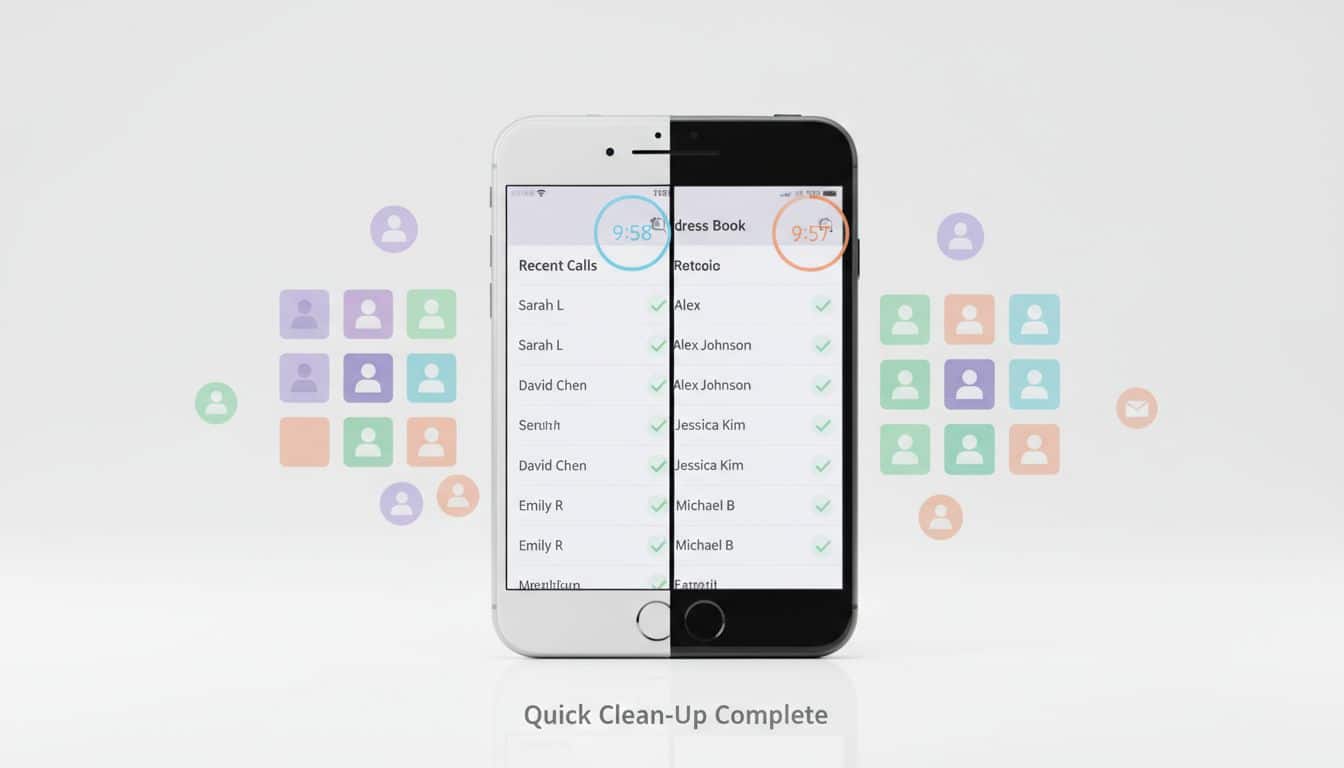
Most contact lists don’t get messy because you’re disorganized. They get messy because life is messy. You change jobs, switch phones, sign into a new email, and suddenly “Mom” appears three times, once with no number.
A quick contacts cleanup fixes the everyday friction. You’ll find people faster, avoid texting the wrong “Alex,” and stop carrying a mini phonebook of strangers you met once in 2019.

The 60-second setup that makes cleanup painless
Before you delete anything, decide where your contacts “live.” If your iPhone saves some to iCloud, some to Gmail, and some “On My iPhone,” duplicates are almost guaranteed. Android users run into the same issue with multiple Google accounts, device-only contacts, and old SIM imports.
Start by checking which accounts are syncing contacts:
- On iPhone: Settings, tap your name, then iCloud, and check whether Contacts is on. Also check Settings, Apps, Contacts, Accounts to see other sources (like Google).
- On Android: Settings, Passwords and accounts (wording varies), then look for Google accounts and Contacts sync.
Next, pick one primary home. For many people, that’s iCloud on iPhone and Google Contacts on Android. If you use both platforms (work phone plus personal phone, or you switch often), Google Contacts can be the simplest single source.
Here’s a fast 10-minute plan that works on either phone:
| Minute | What you do | Goal |
|---|---|---|
| 0 to 1 | Confirm your main sync account | Stop new duplicates |
| 1 to 4 | Merge duplicates | Reduce clutter fast |
| 4 to 8 | Delete obvious “who is this?” entries | Remove dead weight |
| 8 to 10 | Add missing details for key people | Make the list useful |
If you’re nervous, you’re normal. Contacts feel personal, so use sync and trash features as your safety net.
A 10-minute contacts cleanup on iPhone (fast, safe, and reversible)
First, make sure you’re editing the right list. Open the Contacts app, tap Lists (or Groups), then choose the list tied to your main account (often iCloud). If you clean the wrong list, you’ll think you deleted “duplicates,” but you only hid them from one view.
Next, merge duplicates using Apple’s built-in tool. In recent iOS versions, the Contacts app can detect duplicates and offer merges. Apple outlines the current steps in its guide on getting rid of duplicate contacts on iPhone. Merging is usually better than deleting because it keeps extra numbers, emails, and notes.
Then, do a quick “junk sweep.” Scroll to the letters where clutter hides (often A, J, and S). As you scan, delete entries that are clearly outdated: old delivery numbers, one-time vendors, or people you can’t place.
If you need to delete several at once, use the iPhone multi-select gesture. In the Contacts list view, place two fingers on the screen, drag to select multiple names, then press and hold a selected contact and tap Delete Contacts. This feels like tidying a drawer with one big scoop instead of picking up each paperclip.
Finally, sanity-check syncing. If Contacts is on in iCloud, deleting a contact deletes it across Apple devices on that account. That’s often what you want, but it should be a choice, not a surprise. If you want extra context and screenshots for duplicates, Pocket-lint’s walkthrough on merging and deleting duplicate iPhone contacts can help you confirm you’re in the right place.
A 10-minute contacts cleanup on Android (Google Contacts is your best friend)
Android cleanup goes fastest when you use Google Contacts, even if you start on the phone. That’s because Google gives you bulk tools, a duplicate checker, and a trash window.
Begin by opening the Contacts app and switching to the correct account. Many Android phones show a small account icon or a drop-down at the top. If you clean “Device” contacts while your real list lives in Google, your work won’t stick.
Now merge duplicates. In the Google Contacts app, look for Organize, then Merge & fix. Google will suggest matches, and you can merge them one by one or all at once. If you want a visual guide to the menus, 9to5Google explains how to merge duplicate contacts and use Google Contacts tools.
After that, switch into delete mode for the obvious clutter. Press and hold one contact, tap a few more, then delete. On many devices, deleted contacts go to a trash or bin for about 30 days. That’s helpful because the “Oops, I needed that electrician” moment always arrives late.
For the fastest bulk cleanup, use the web. Open a browser and go to contacts.google.com, then select many contacts with checkboxes and delete them in batches. This method also makes it easier to spot duplicates that differ only by one character. If you want a broader tour of delete options across Android versions and devices, Shared Contacts has a practical guide on deleting contacts on Android.
To finish your 10 minutes, fix three “VIP” entries. Pick the people you call when you’re stressed (partner, best friend, parent, boss). Add a second number, an email, or a note like “prefers text.” A clean list isn’t just smaller, it’s kinder to Future You.
A quick wrap-up
A good contacts cleanup is less about perfection and more about removing small annoyances. Choose one main account, merge duplicates, delete the obvious leftovers, then add missing details for the people who matter. After that, keep it simple: if a new contact doesn’t belong in your life after a week, it probably doesn’t belong in your phone either.


